In this post, I want to reference some of my findings related to how the @section, @yield, @stop and @show commands work in Laravel’s Blade template engine as the official documentation regarding these subjects are pretty much non-existent. The @section command is used to define an area within your template, consider the following example: This is our master layout template named master.blade.php, it will reside in the app/views directory.
<html> <title> @section('title') SiteName @show </title> <body> @yield('content') </body> </html>
Now what the @section is doing above is creating a placeholder area named title with a default value (SiteName). At end, we use @show, why? To tell it to display the content at that point. If we used @stop, it would not output the title, now take a look at the child template below for a View called home.blade.php (again, this resides in app/views directory of your Laravel installation):
@extends('master') @section('title') Home | @parent @stop @section('content') A test sentence. @stop
The only thing its doing is defining content for this particular page / view. But the first thing it does is it tell it to extend the master template, so this child template extends our master template. It calls our section again and modifies it by appending Home | to the original title defined in our master template, so when its parsed as html it becomes Home | SiteName, neat huh? We used the @parent command to retrieve the original title defined by the parent / master template file. At the end we also use @stop command to tell it not to output anything right now, since it will be taken care of by the master template we created earlier. Because the Blade Template Engine does inheriting. One last thing I want to mention is that in the master template file above I used the following: @yield('content') This basically does the same thing as @section(‘content’) and is used if we simply don’t want the inherit (cascading) functionality. @yield is used when you simply want to overwrite the content instead of appending more content to the original.
I hope those who come across this post, find it helpful.. I made this post in quite a hurry for reference purpose as I was just beginning to get into the Laravel Web Framework. If some thing feels confusing or unclear or if something could be improved then please do mention by commenting. Cheers!
 I have recently gotten my hands dirty with CS Cart, which is a eCommerce shopping cart system similar to Magento and OpenCart. CS Cart is far less popular than the other shopping cart systems so finding decent, working and free addon for cs-cart is very less likely. I can tell you that CS Cart is fairly complex to get started, and it took me a while to get a decent grasp of how things work in their system; and I am still not up to full marks yet! but I’m getting there 🙂 I created my first add-on for cs-cart so wanted to share this simple, yet useful add-on for people who are running the latest CS Cart version. Which at the time of writing this post is version 4.3.
  Just wanted to write a quick post about why you might get a
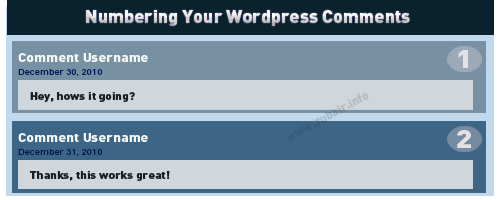 I was just working on making custom theme, and thought of displaying numbers on version 2.7 – but since then a lot of things have changed, I noticed the need to change things around a little to achieve the wordpress comment numbering. So this is only for WordPress version 2.7 and higher. Though, you can achieve the same with older wordpress version by just modifying the position where you place the code. Just to be clear, I have a custom comment callback function like this one: